Warmly welcome to my site!!!

Tuesday, December 21, 2010

Windows 7 File Search Indexing Options

                             The built-in search feature in Windows 7 is significantly better than the horrible search options in Windows XP. Instead of installing a third-party program like Google Desktop to search for files on inside files on your computer, you can now do it with easily from Windows 7.
                             For example, let’s say your a programmer or web developer and you want to be able to search your code files like .aspx, .html, .java, .php, etc. With Windows 7, you can configure the search indexer to not only index any file you want, but also to index the file contents.

                           By default, the Search Indexer in Windows 7 indexes the most common locations where your files would be stored, i.e. all libraries, everything in your User folder, and e-mail. If this is not enough, you can add or remove index location really easily.
That means you can tell Windows 7 to index and return results from files and folder on network drives or external hard drives. To get started , click on Start, then type in search into the search box.
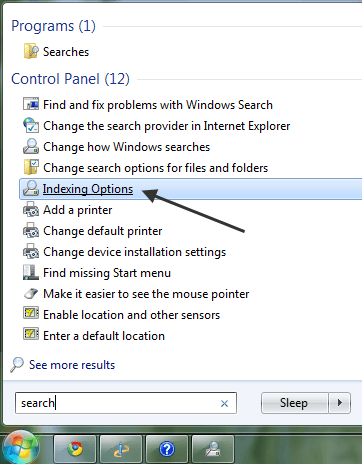
indexing options windows 7
This will bring up the Indexing Options dialog. At the top, you’ll see the total number of items that have currently been indexed on your computer. Below that, you will see a list of all the locations that have been included for indexing.
windows 7 search indexer
To add a new location to the index, click on the Modify button. Any network drive or external hard drive will show up in the list of possible locations. You can check off any drive or folder that you would like to include in the index.
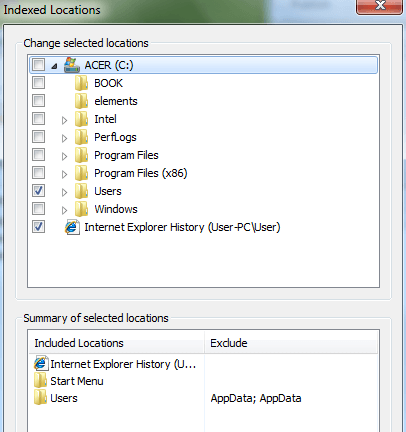
windows 7 search inside files
Depending on how many files and folders are in a location, it could take some time for search indexer to index everything. If you have noticed that certain files are not being indexed by search indexer even though they are included in the search locations, you may have to add the file type.
You can do this by clicking on the Advanced button on the main Indexing Options screen. Then click on the File Types tab.
windows 7 search in files
If the file extension is not in the list, go ahead and add it at the bottom. Then select it and choose whether you want to index just the properties or the properties and the file contents. If you know the file contains only text, make sure to select the second radio button.
You can also click on Index Settings to modify some of the settings for the Search Indexer.
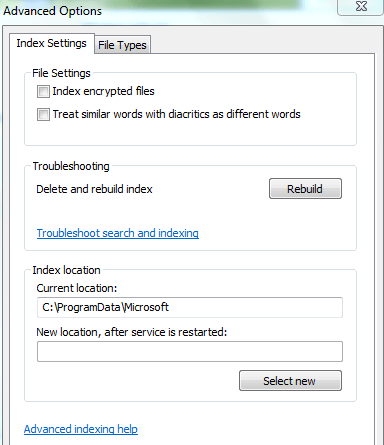
windows 7 index settings
Here you can choose to index encrypted files and other options like treating similar words with diacritics as different words. If you are having problems with Windows search or something has become corrupted, you can rebuild the index by clicking the Rebuild button.
Lastly, you can completely move the search index to another disk or partition. If you have a faster hard drive that the OS is not running on, it might be a good idea to move it so that it performs faster.
Overall, the new search features in Windows 7 are greatly enhanced and let you customize most of the search options.

Enjoy!!!

Google Search Engine Basics – Shortcuts and Commands


Google Search

Find all pages for a specific website

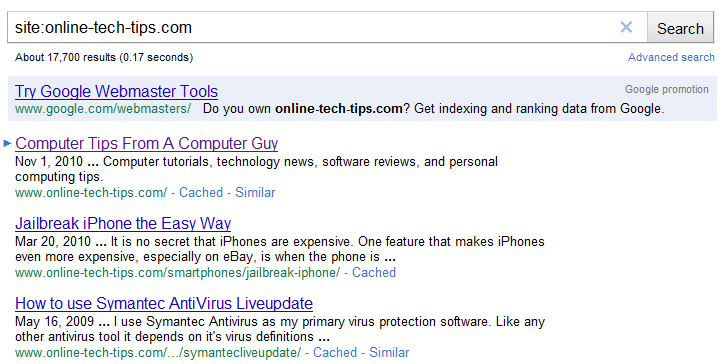
The first shortcut involves finding all Google indexed pages for a specific website. To get started, head on over to the Google homepage. Also, make sure that you know the exact base URL of the website you want to check. For the example, we will use Online-Tech-Tips which has a base URL of online-tech-tips.com. Type the following into the Google search box.
site:whateverwebsiteyouwant.com
example… site:online-tech-tips.com
Google Search Query

Search for a keyword within a specific website

This shortcut is basically like the one mentioned previously, with the exception that we will now search within a specific website for pages only relating to a certain keyword or search term. Here’s an example, which will search Online-Tech-Tips.com for the keyword “Microsoft.”
site:whateverwebsiteyouwant.com keyword here
example… site:online-tech-tips.com Microsoft
Notice that this shortcut is extremely easy to use. Simply leave a space after the URL, and type your keyword.

Search for an exact phrase

Upon using Google to search for a specific phrase, you may have noticed that Google does not always return the most relevant results, or the search results that you were looking for. An example of this would be:
If you searched Google for Online-Tech-Tips rules! and Google returned several search results similar to:
The Online community for Tech Tips has just posted some new rules.
Notice how Google did search the web for your keywords. However, it did not search for the exact phrase. If you want to search for an exact phrase, simply put it in quotes. Here’s an example.
“Online-Tech-Tips Rules!” (with quotes) will only return results that include the exact phrase “Online-Tech-Tips Rules!”

Excluding a term from a search

Although not as commonly used, Google does offer a feature that allows you to exclude a specific word from a search. This can be done by using the – key on your keyboard.
Excluding a term is very easy to do, but is a bit more complex than the other search commands we have covered thus far. This is because the exclude a term feature will either use the – key as a minus sign (meaning to exclude), or a hyphen (meaning don’t exclude). Review the below example for a better explanation.
Searching for Online-Tech-Tips will return all webpages indexed in Google that relate to the search term, Online-Tech-Tips.
HOWEVER…
Using the search term Online-Tech –Tips will return all webpages indexed in Google that relate to Online-Tech, but will exclude any listings that feature the excluded word, Tips.
Notice the space between the first and second example, which cleanly demonstrates how to use the exclude search feature.

Fill in the blanks feature

The fill in the blanks feature is a lesser known Google search command that allows you to use Google’s AI to guess words. Check out the below examples for a demonstration on how the fill in the blanks feature may be able to help you out on your next homework assignment.
Example: Anytime you want, you can use the * character to activate Google’s fill in the blanks feature.
Suppose you get a biology assignment that has a lot of fill in the blank questions. For example:
_____ is widely considered to be the _____ of modern biology.
* is widely considered to be the * of modern biology would be a good search term to use for this question, which would take advantage of Google’s fill in the blanks feature.

The advanced search

Well, the search may not be extremely advanced, but by adding a + symbol before your search terms, you can make Google tighten up its search standards and draw more specific results, relating to your query. Here’s an example…
+ online tech tips mac
This feature works much like the “” feature.

The capital OR

A lowercase or will not do anything special to a Google search. However, a capital OR will activate Google’s OR search feature, allowing you to search for multiple keywords. Here’s an example…
You want to know more about the Eiffel Tower’s construction.
Your search term, with the OR modifier is: Eiffel Tower construction OR Eiffel Tower building
By using OR, Google will search for both Eiffel Tower construction and Eiffel Tower building simultaneously. From there, you will be presented with the most popular listings among both groups.

Enjoy!!!